QVT Operational – Manual Installation
In some Eclipse installations, QVT Operational (QVTo) may not be available by default.
If you do not see:
Run As → QVT Operational Transformation
Project → Properties → QVT Settings → Metamodel Mappings
or QVT-related options in Eclipse, you will need to install QVTo manually.
Option 1 – Install from Eclipse Update Site (Recommended)
This method installs QVTo directly from the Eclipse update site.
Step 1 – Open Install New Software
Open Eclipse.
Go to:
Help → Install New Software...
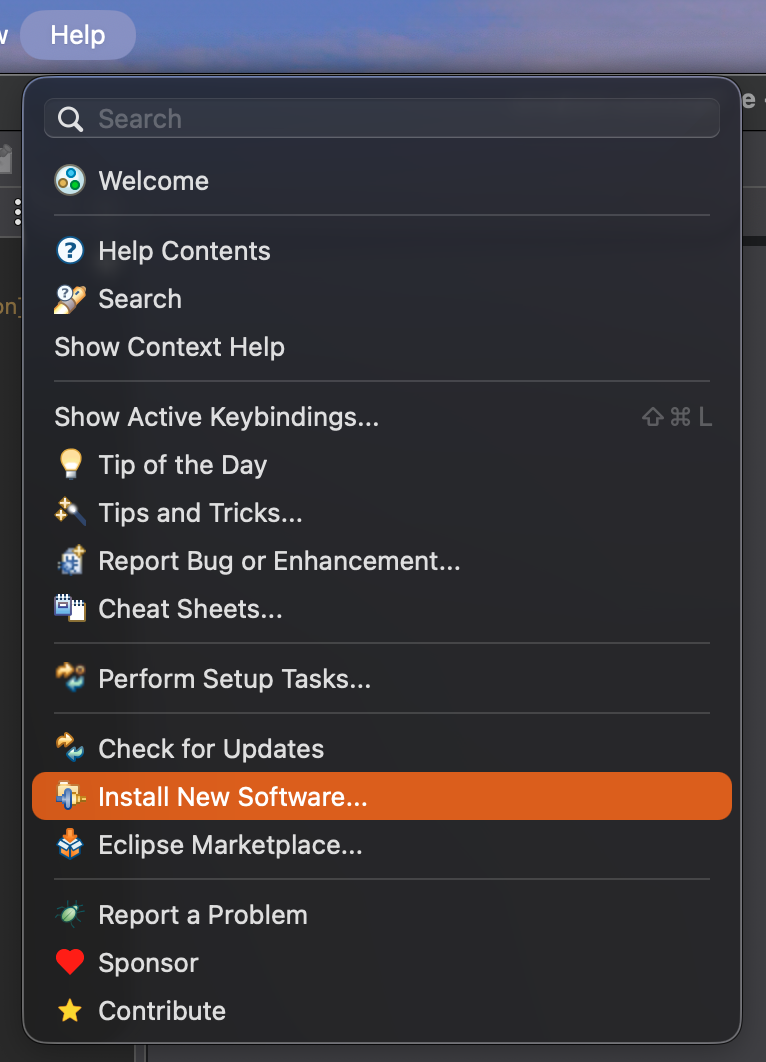
Step 2 – Add the QVTo Update Site
Click Add...
In the Add Repository window, enter:
Name: QVTo 3.11.2 Release Latest
Location: https://download.eclipse.org/mmt/qvto/builds/release/latest/
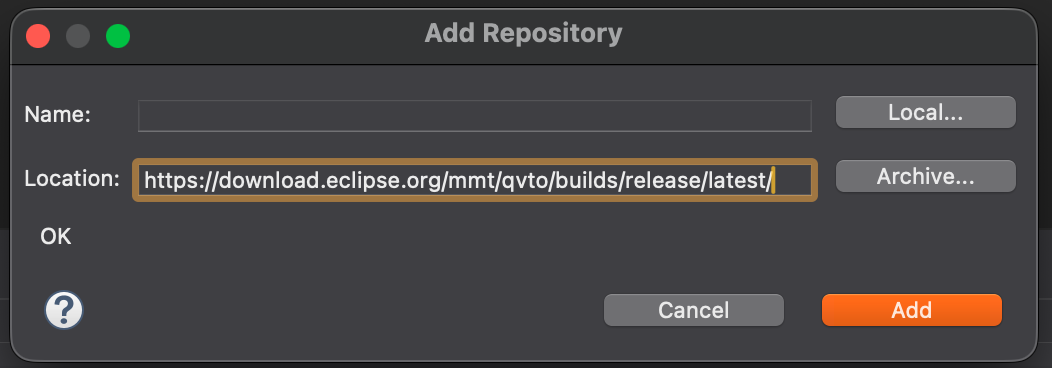
Click Add.
Step 3 – Select Components
After Eclipse loads the available software, select:
- QVT Operational
- QVT Operational (tests)
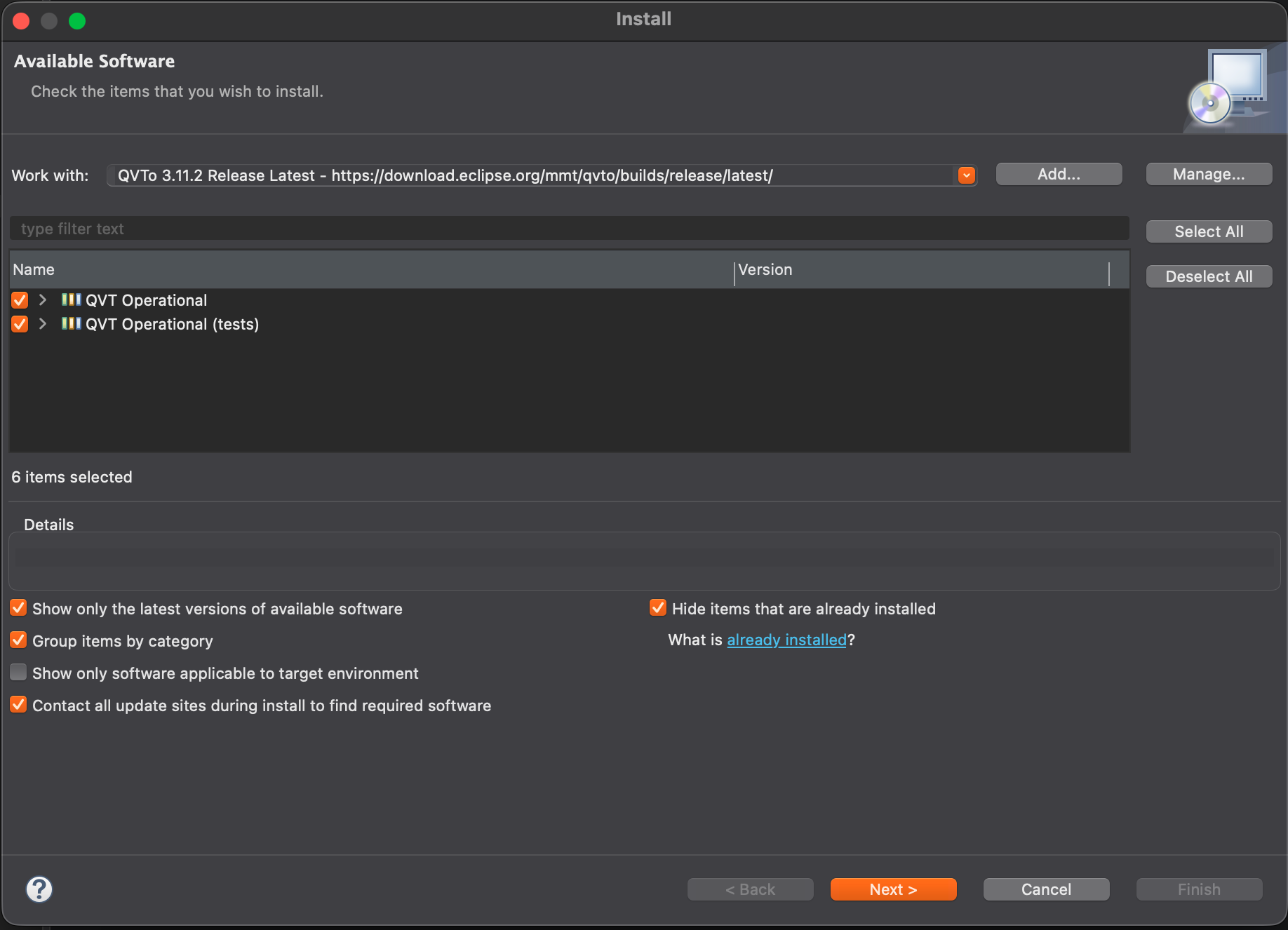
Click:
Next
Step 4 – Review Install Details
Review the items to be installed.
You should see QVT Operational components such as:
-
QVT Operational Development Tools
-
QVT Operational SDK
-
QVT Operational Tests
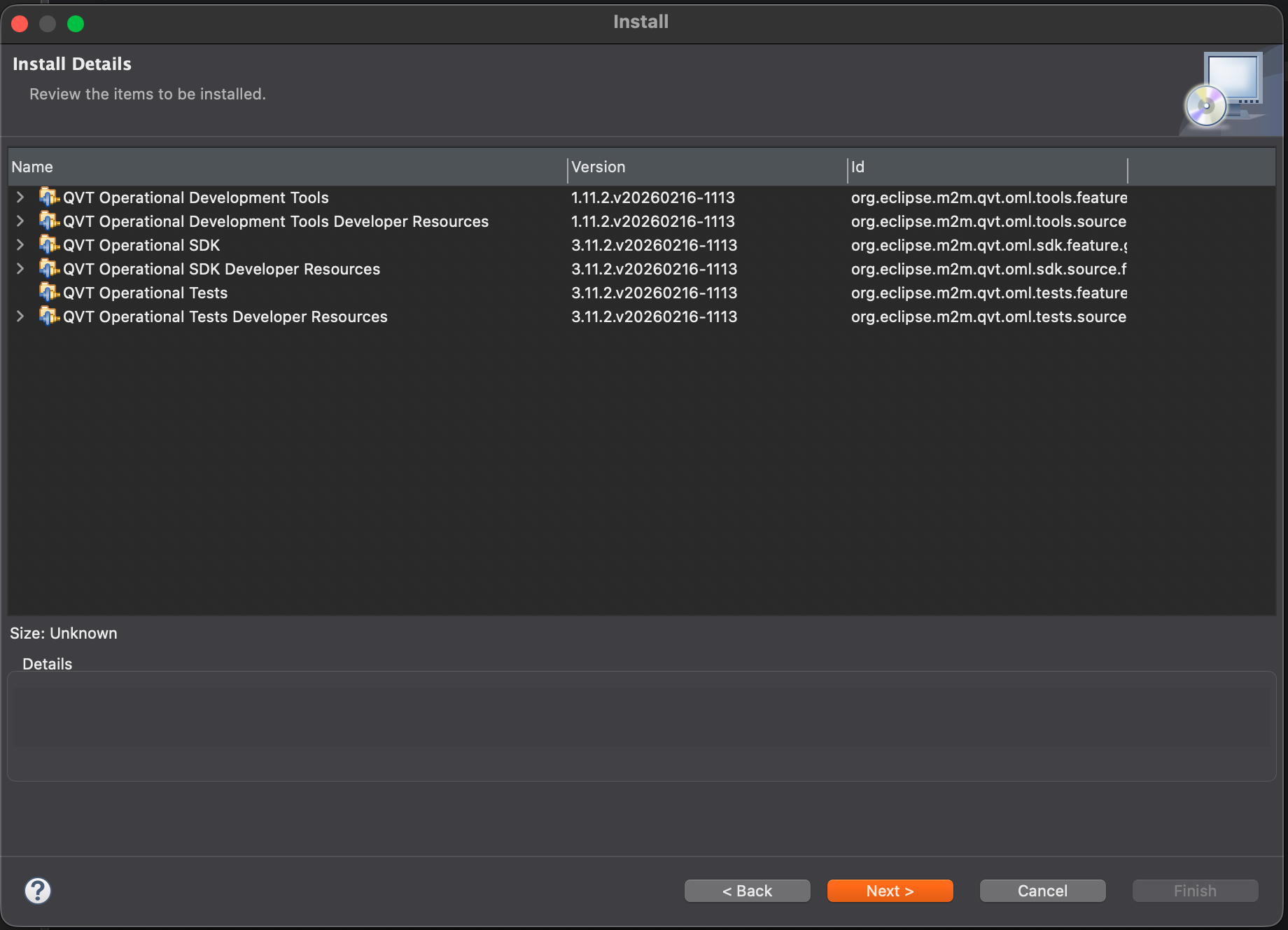
Click:
Next
Step 5 – Accept the Licence
Select:
I accept the terms of the license agreement
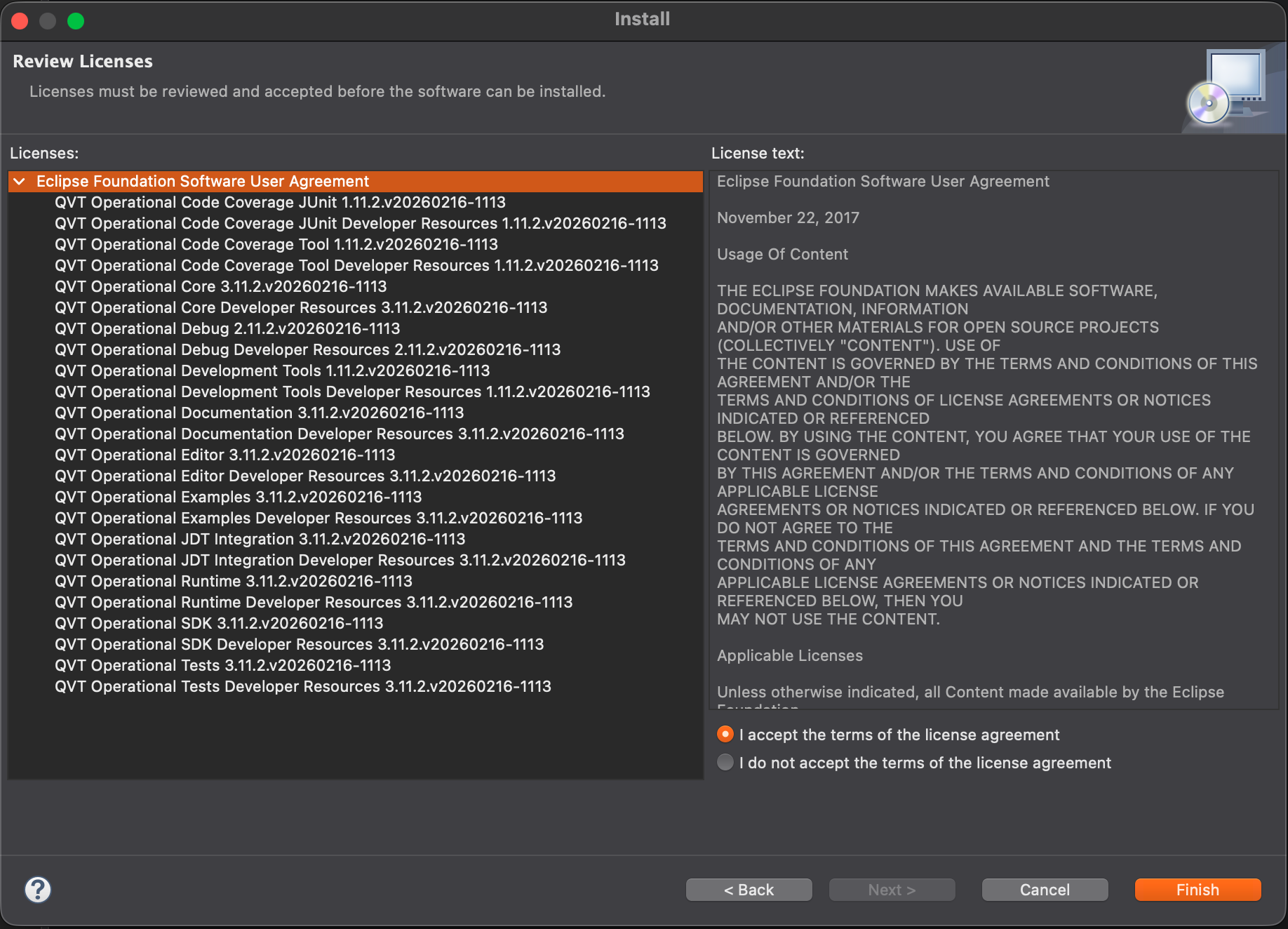
Click:
Finish
Step 6 – Restart Eclipse
After installation, Eclipse will ask you to restart.
Click:
Restart Now
Install EMF SDK if the Reflective Ecore Editor Is Missing
Some Eclipse installations can run QVTo transformations and create XMI files but do not include the Sample Reflective Ecore Model Editor.
This is more likely when using the lighter Eclipse IDE for Java Developers package instead of Eclipse Modeling Tools.
To install the missing EMF tooling:
- Open Eclipse.
- Go to:
Help → Install New Software...
- In Work with, enter the Eclipse 2026-06 release repository:
https://download.eclipse.org/releases/2026-06
- Wait for the available software list to load.
- Use the filter field to search for:
EMF SDK
- Select the Eclipse Modeling Framework SDK feature under the modelling components.
- Continue with:
Next → Next → Accept the licence → Finish
- Restart Eclipse when prompted.
After restarting, right-click an .ecore or compatible .xmi model and check:
Open With → Sample Reflective Ecore Model Editor
Installing QVTo may provide enough EMF runtime dependencies to execute the transformation, but the reflective model editor may still require the EMF SDK tooling to be installed separately.
Option 2 – Eclipse Marketplace
This method may not work in newer Eclipse versions, as QVTo may not appear in the Marketplace.
You can try installing QVTo via the Eclipse Marketplace:
Go to:
Help → Eclipse Marketplace
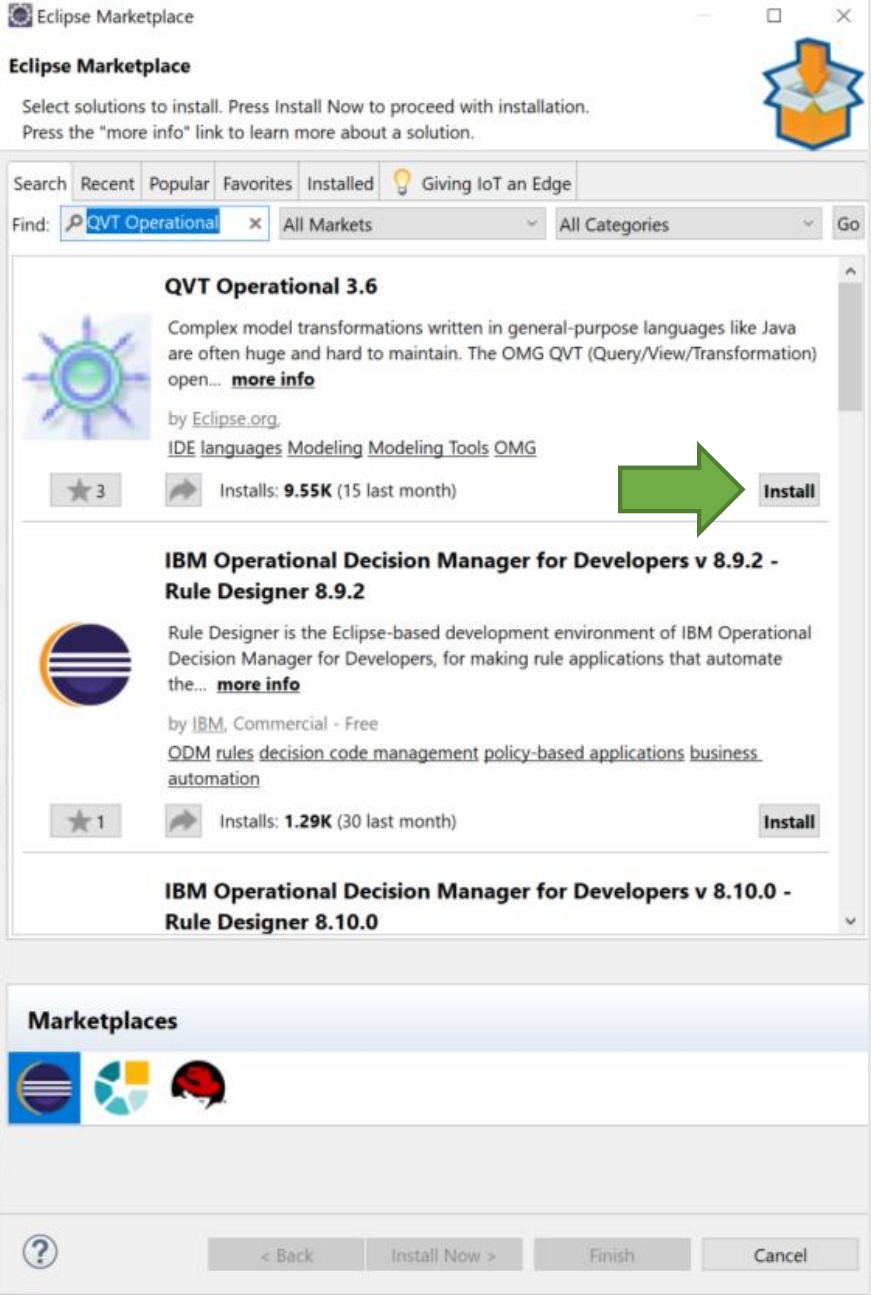
Search for:
QVT Operational
Click Install and follow the steps.
In newer Eclipse versions, QVTo may not appear in Marketplace.
If it does not show, use the manual installation method below.
Verification
After restarting Eclipse, verify that QVTo was installed correctly:
- Right-click a
.qvtofile - Select:
Run As → QVT Operational Transformation
If this option appears, QVTo is installed successfully. You can now run setup QVT transformations. QVT Setup Guide
Alternative – Install from Downloaded Archive
If the direct update-site method does not work, you can still install QVTo from the archive manually.
Go to the official release page:
https://download.eclipse.org/mmt/qvto/builds/release/latest/index.html
Download the .zip file, for example:
QVTo-Updates-3.11.2.zip
Then in Eclipse:
Help → Install New Software... → Add... → Archive...
Select the downloaded .zip file and continue with the same steps:
Next → Next → Accept License → Finish
Notes
-
Final tested version: QVTo 3.11.2
-
QVTo is still actively maintained, so newer versions may exist
-
Some Eclipse distributions already include QVTo
-
If the Sample Reflective Ecore Model Editor is missing, install the EMF SDK from
https://download.eclipse.org/releases/2026-06 -
Use the direct update-site method first
-
Use the archive method only if the update-site method fails
Next Steps
You can now proceed to set up QVTo for MiSAR transformations. QVT Setup Guide